Overview & setup
Install Repair Shop, run first-time setup, and find your way around.
Repair Shop is a desktop app for running any repair business - phones, computers, bikes, appliances, watches and more. Everything lives on your own computer and works offline; you only need the internet to activate your licence, receive updates and to send optional updates to customers.
Install Repair Shop
Download the installer for your operating system from your account, then open it: the .exe installer on Windows, the .dmg on macOS, or the .deb or .AppImage on Linux. See System requirements for the minimum specs - almost any computer from the last decade will run it comfortably.
Running the Linux download. On Debian or Ubuntu the .deb is the simplest choice - double-click on it to install, then start Repair Shop from your applications menu. The .AppImage is a single portable file that runs without installing, but Linux will not run it until you mark it as executable: right-click on the file, choose Properties, open the Permissions tab and tick Allow executing file as program (or, in a terminal, run chmod +x Repair.Shop_*.AppImage). Then double-click on it to launch.
On some newer Linux versions (for example Ubuntu 22.04 and later) AppImages also need the libfuse2 library. If double-clicking on the file does nothing, or you see an error mentioning libfuse.so.2, install it with sudo apt install libfuse2, or run the file with ./Repair.Shop_*.AppImage --appimage-extract-and-run.
First-time setup
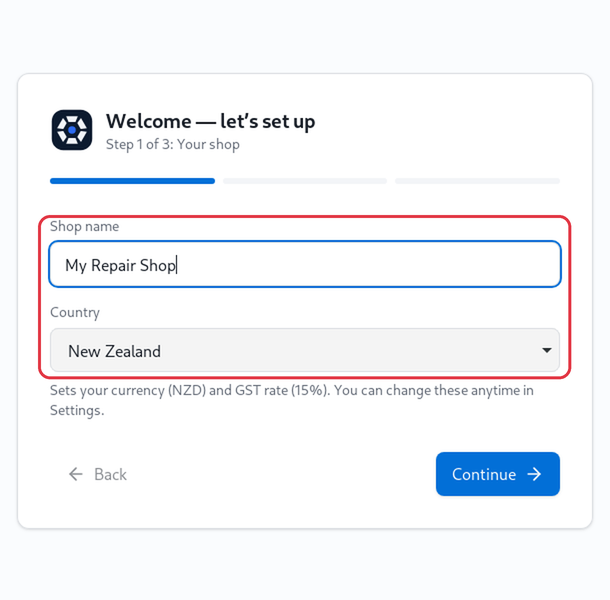
Enter your Shop name and choose your Country. This sets your currency and tax rate to sensible defaults - you can change them anytime in Settings.
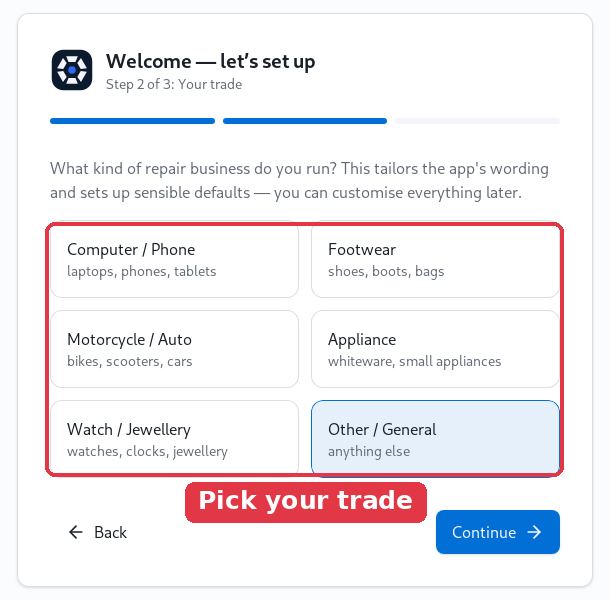
Choose the kind of repair business you run. This tailors the wording throughout the app - a phone shop sees “device”, a bike shop sees “vehicle”, and so on. You can customise everything later.
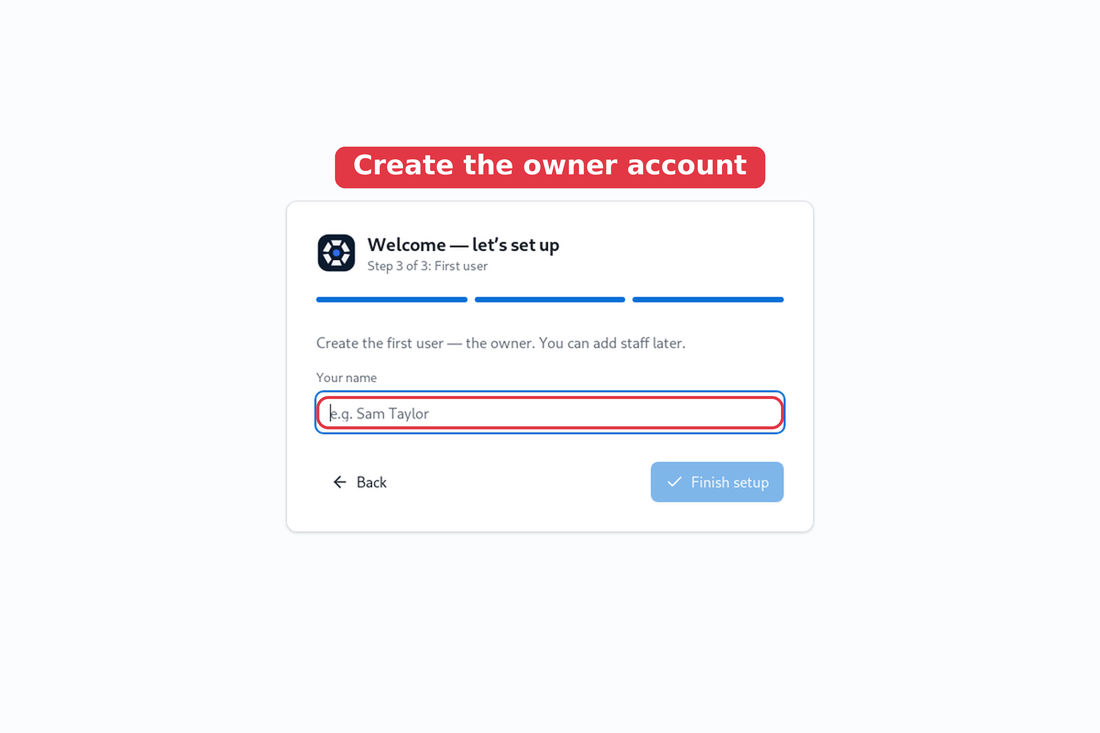
Create the first user (the owner). You can add the rest of your staff later in Settings.
Signing in
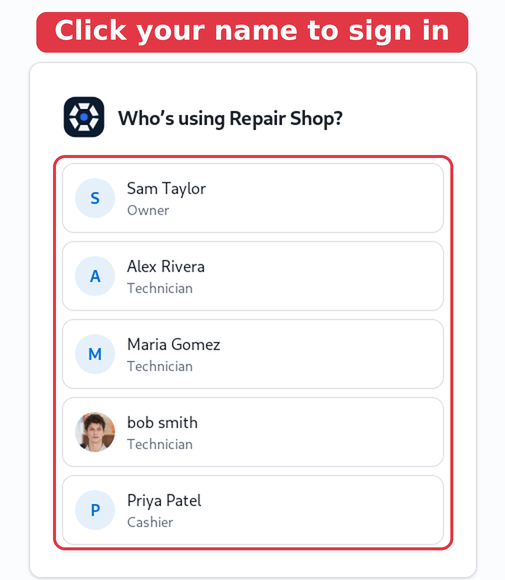
When Repair Shop opens, pick your name to sign in. Each staff member has their own profile, and you can protect profiles with a password in Settings.
The dashboard
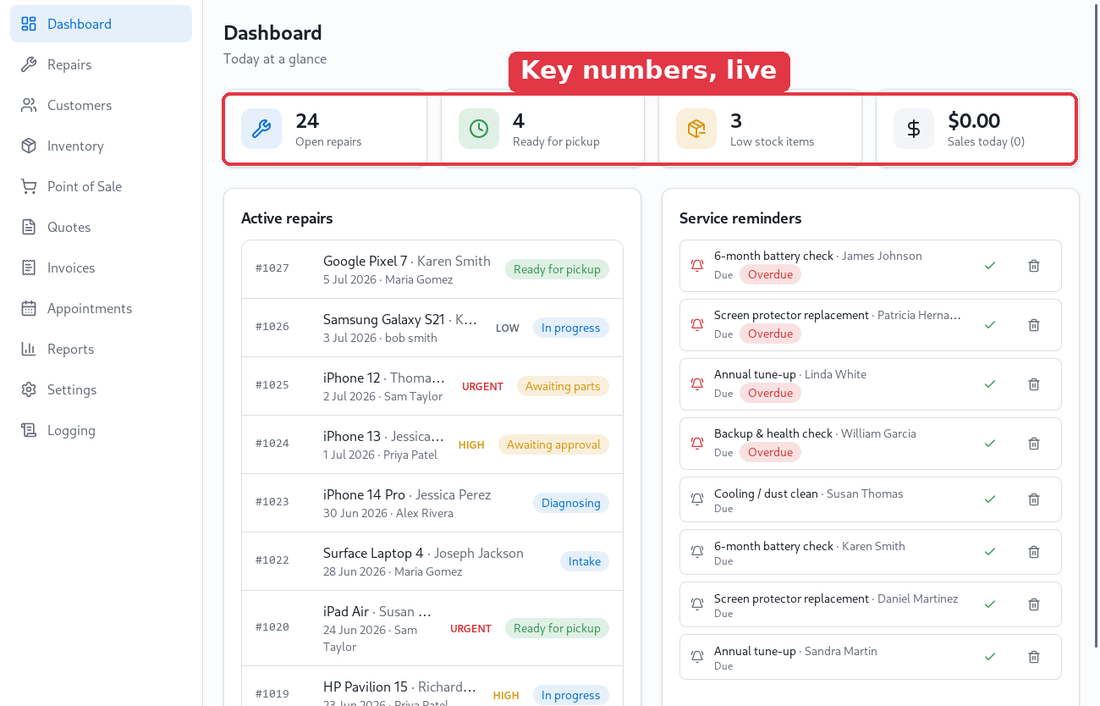
The dashboard is your home screen. The cards along the top show today’s key numbers - open repairs, jobs ready for pickup, low-stock items and sales - and update live as you work. Below are your Active Repairs and upcoming Service Reminders.