Customer notifications
Text and email customers automatically, from your own accounts.
Repair Shop can text and email your customers automatically - for example when a repair is ready. You connect your own email mailbox and Twilio account, so messages come from you and nothing routes through us. Messages queue while you’re offline and send as soon as you’re back online. You’ll find all of this under Settings → Customer notifications.
Turn on email (SMTP)
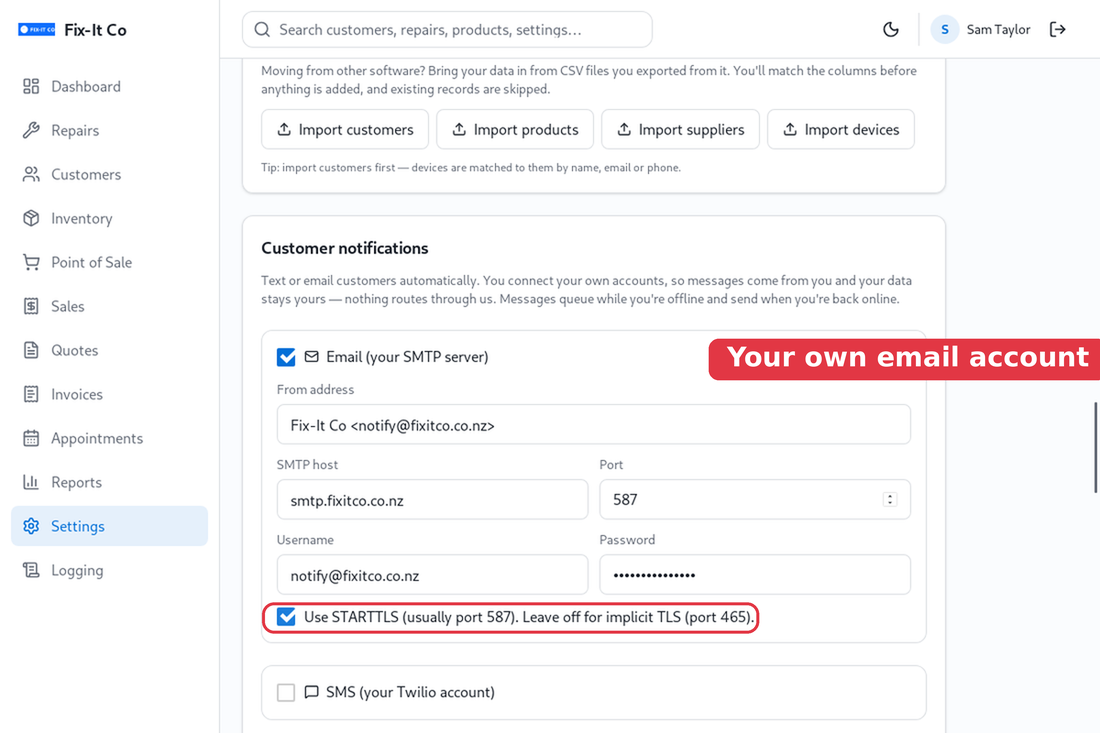
Tick Email (your SMTP server) to reveal the connection fields, then fill in the details from your email provider: a From address (for example Fix-It Co <[email protected]>), your SMTP host and Port, and your Username and Password. Tick Use STARTTLS for port 587, or leave it off for implicit TLS on port 465.
Not sure what to enter? These settings come from whoever provides your email. Ask your email provider or your IT service for the correct SMTP host, port, username and security (STARTTLS or TLS) - they’ll have them ready. If your provider uses two-factor sign-in, you may need to create an app password for Repair Shop rather than using your normal password.
Turn on SMS (Twilio)
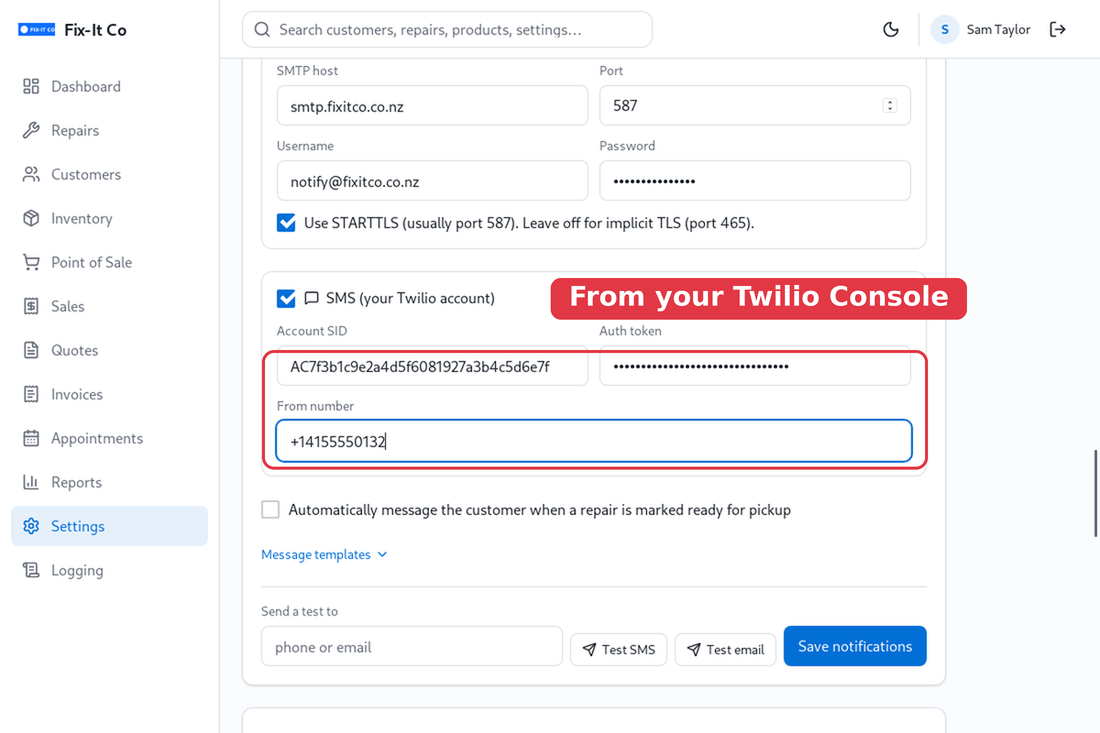
Text messages are sent through Twilio, a pay-as-you-go SMS provider. Tick SMS (your Twilio account) and paste three values from your Twilio Console: your Account SID (it starts with AC…), your Auth token, and the From number you bought in Twilio, in full international format (for example +14155550132).
Message templates
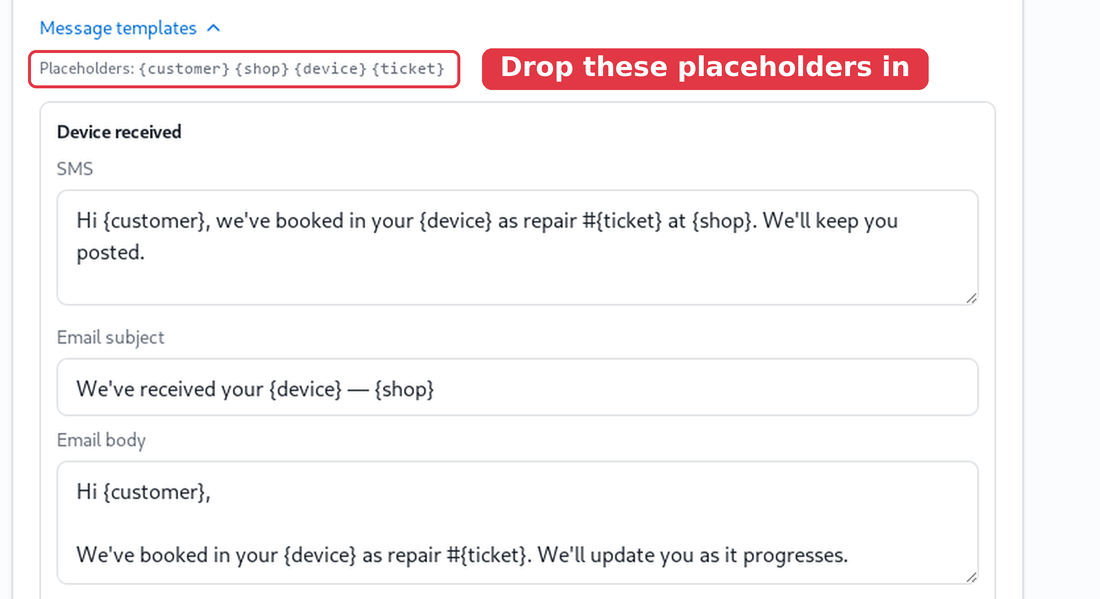
Click on Message templates to edit what each message says. There’s a template for each moment - when an item is received, when it’s Ready for pickup, and an Appointment reminder - each with an SMS, an email subject and an email body. Drop in placeholders and Repair Shop fills them in per customer: {customer}, {shop}, {device} and {ticket}. The Appointment reminder isn’t tied to a repair, so it only fills {customer} and {shop} - use those two in that template. Under the SMS box Repair Shop shows the character count and how many SMS segments the message will use (longer texts cost more), and it warns you if you’ve typed a placeholder it doesn’t recognise, so a typo like {custmer} won’t go out unfilled.
Send automatically & test
Turn on the messages you want sent hands-free: Automatically message the customer when a new repair is booked in (a “we’ve got it” acknowledgement), … when a repair is marked ready for pickup, and Automatically send an appointment reminder the day before. Each uses its matching template and only sends when the customer has the right contact detail.
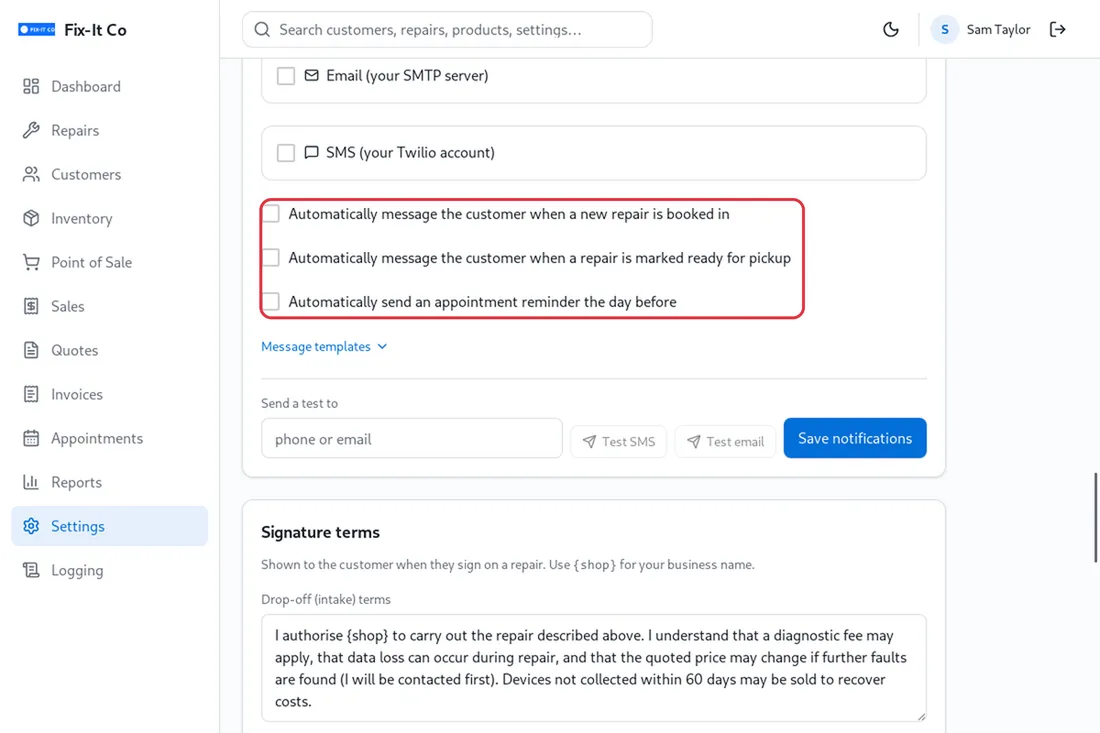
Before you rely on any of them, put your own phone or email under Send a test to and use Test SMS or Test email. When everything looks right, click on Save notifications.
Automatic messages never send from the demo - activate a licence to send for real.
Message a customer from a repair
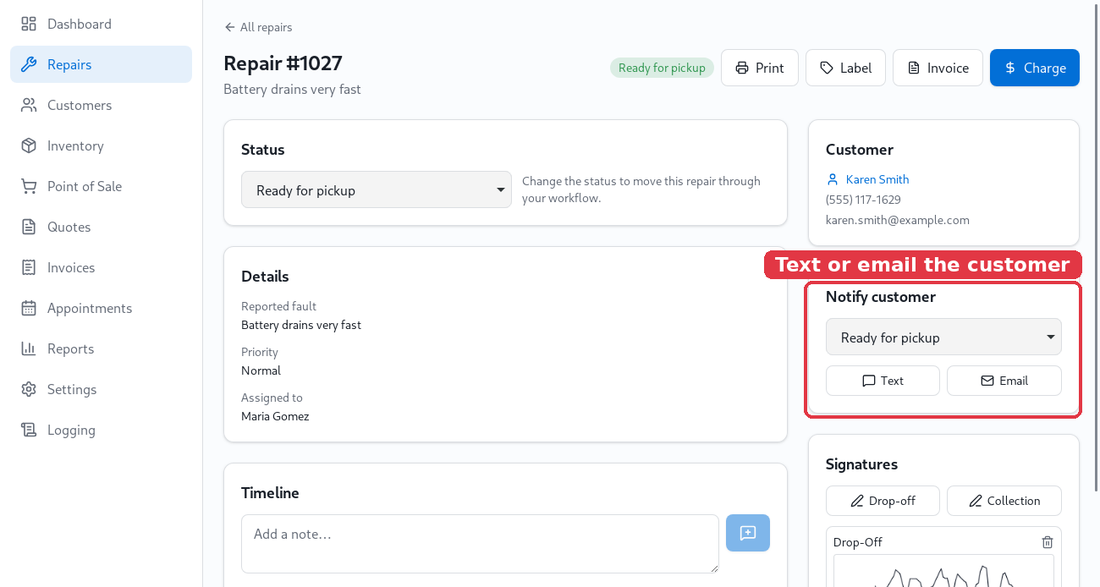
On any repair, the Notify customer panel sends an update in one click. Pick the moment (for example Ready for pickup) and choose Text or Email. Everything you send is listed underneath, so you always have a record of what the customer was told and when.