Appointments & reports
Schedule bookings and pickups, and see how the shop is performing.
Appointments
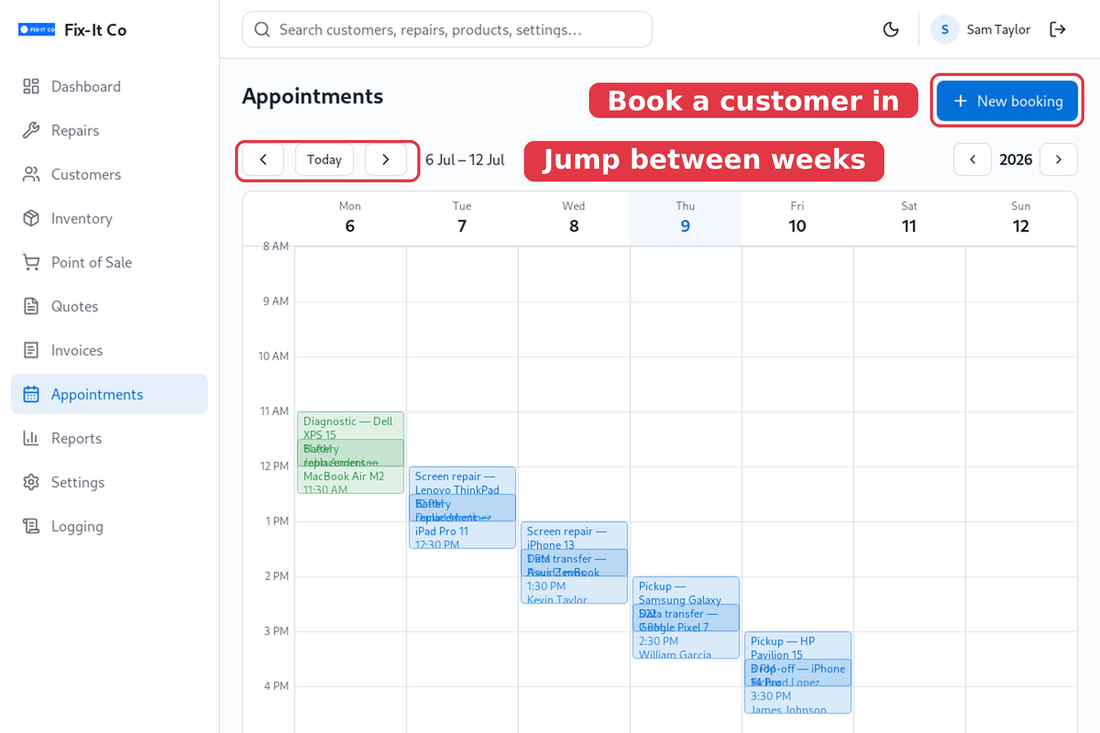
Open Appointments for a week-at-a-glance calendar of bookings and pickups. Move between weeks with the arrows, and click on New booking to schedule a customer in.
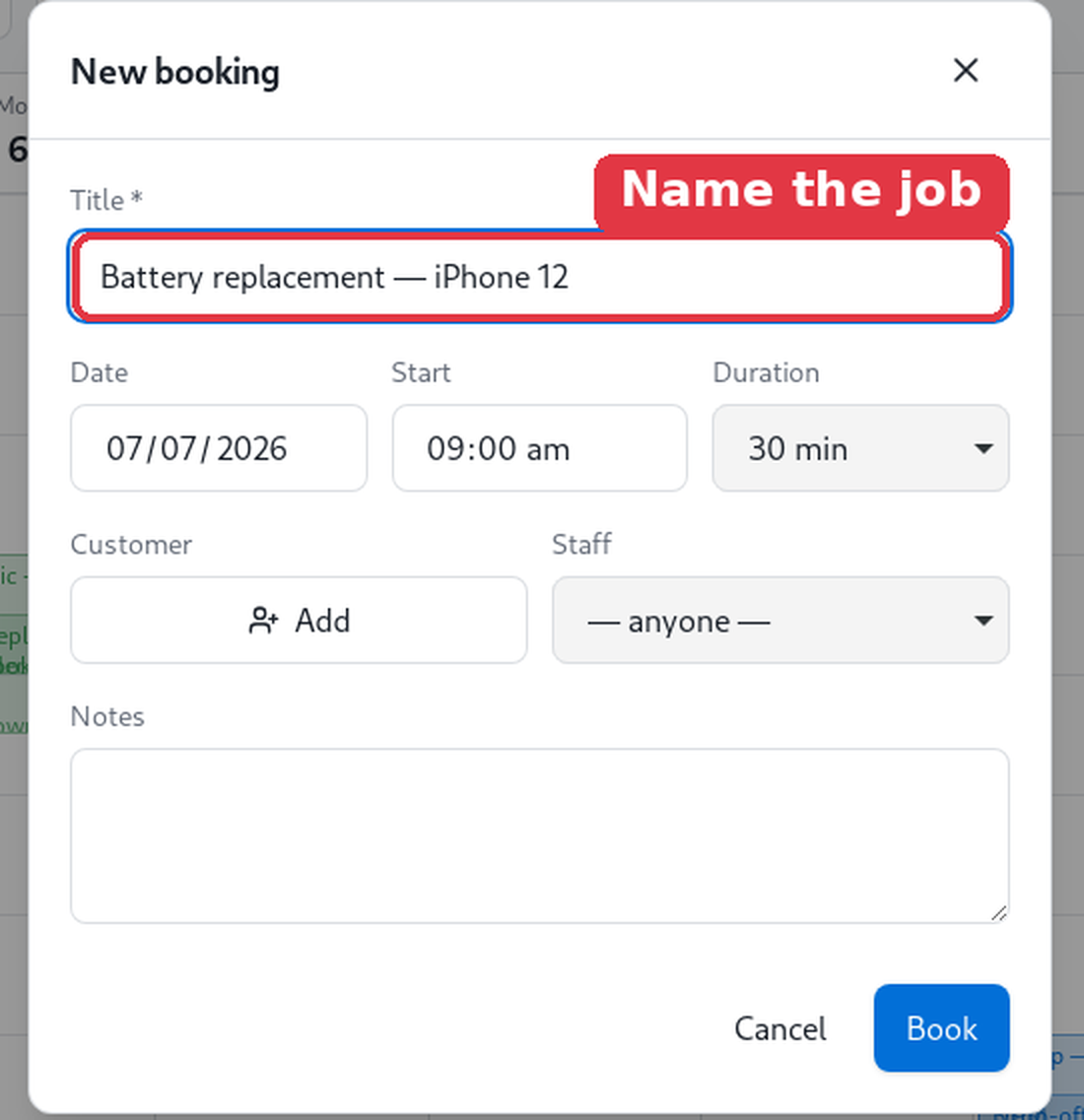
Give the booking a Title (e.g. “Screen repair”), set the Date, Start and Duration, optionally attach a Customer and assign Staff, then click on Book. Open an existing booking to change its Status (Booked, Confirmed, Arrived, Completed…) or turn it into a job with Start repair. If the staff member you pick is already booked over that time, Repair Shop shows a double-booking warning - you can still go ahead if it’s intended. The calendar also stretches earlier or later than its usual hours automatically to fit any booking outside them.
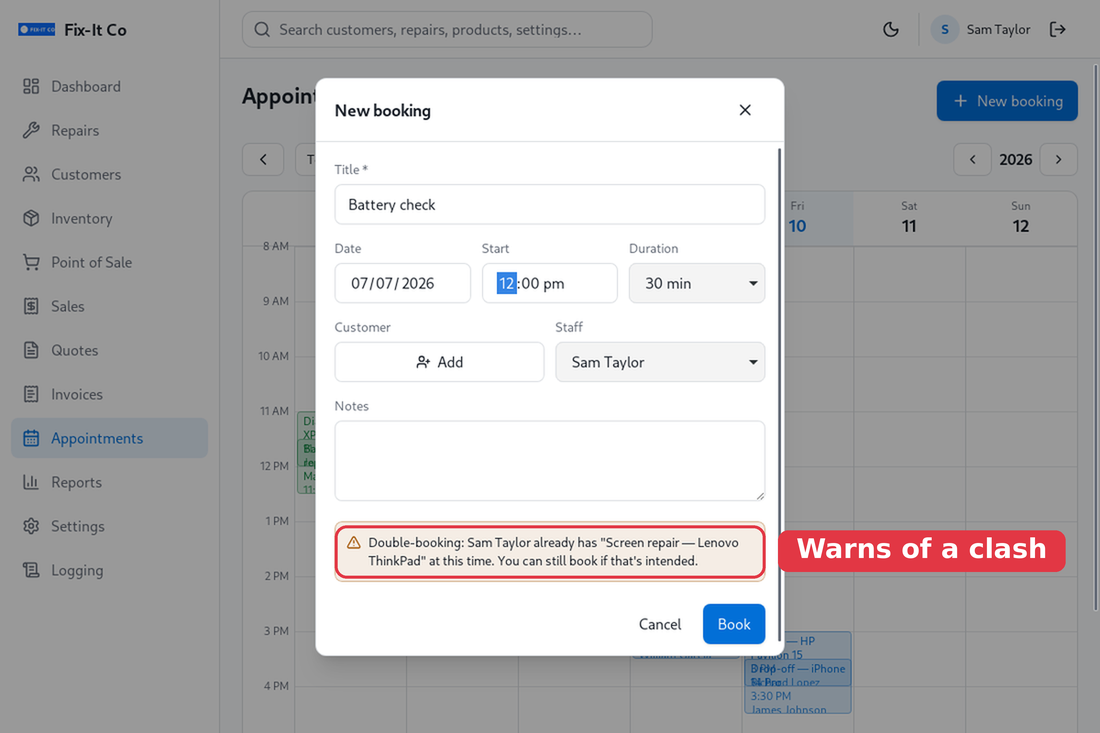
If you assign a staff member who is already booked over that time, Repair Shop shows a double-booking warning - handy for spotting a clash, though you can still book if it’s intended.
Rescheduling is a drag. To move a booking, drag it to a new day or time on the calendar and drop it - its length stays the same and the new time saves straight away. There’s no need to open it just to shift it half an hour. A New booking also starts in whatever week you’re looking at, so scheduling ahead doesn’t jump you back to today.
Reminders. Turn on Automatically send an appointment reminder the day before under Notifications and Repair Shop texts or emails each customer with an upcoming booking - once each - so fewer people forget to turn up. It uses your Appointment reminder template and the customer’s contact details.
Reports
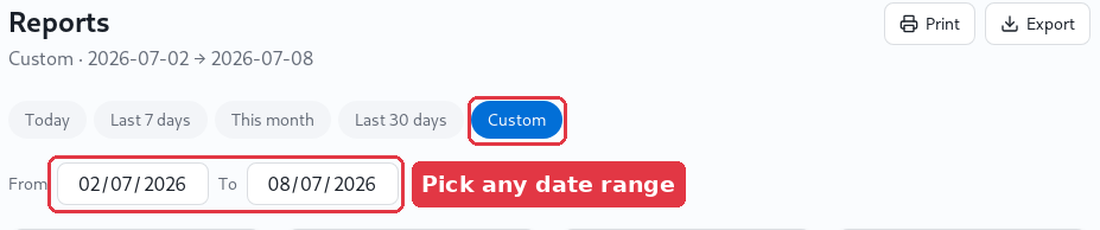
Open Reports to see how the shop is doing - sales over time, repairs opened and closed, your top-selling items and sales by staff member. Switch the date range with the chips at the top, and Export the figures when you need them.
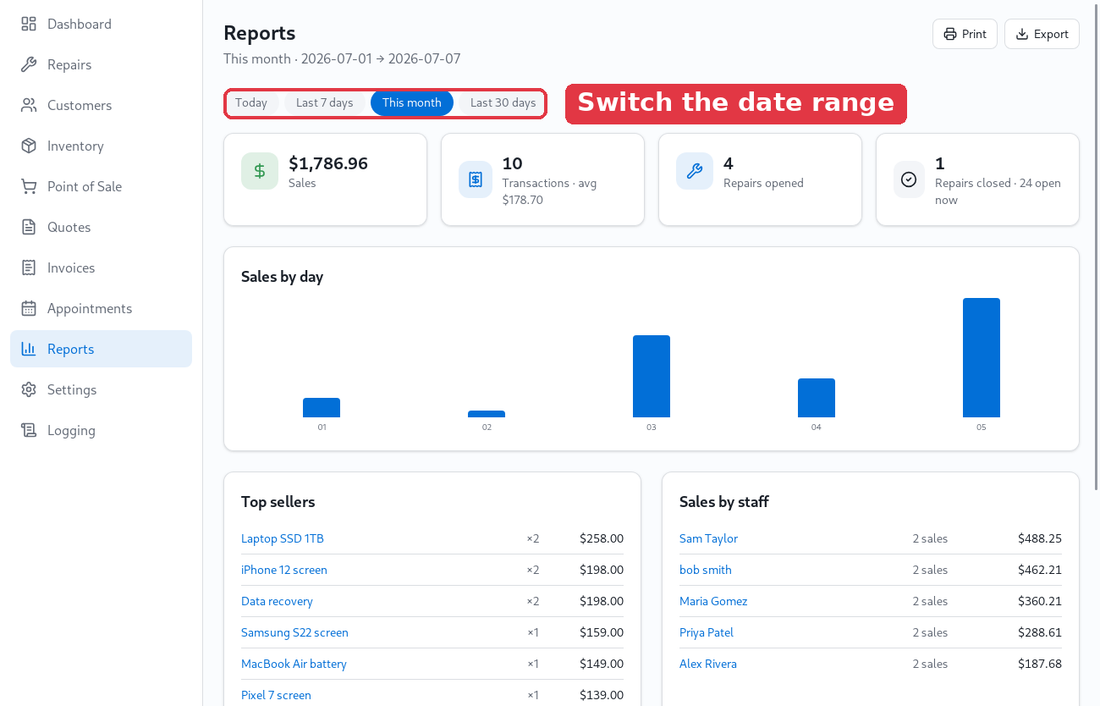
The chips are quick shortcuts - Today, Last 7 days, This month, Last 30 days. For any other period - a quarter, a single day, last year - click on Custom and pick a From and To date. Every figure and chart updates to that range, and Export saves exactly what you’re looking at.