Repairs & tickets
Book in a job, work it through to pickup, and keep every detail on one page.
A repair ticket is the heart of a job. It holds the customer, the item, the fault, its status, notes, signatures, payments and messages - all in one place.
Start a repair
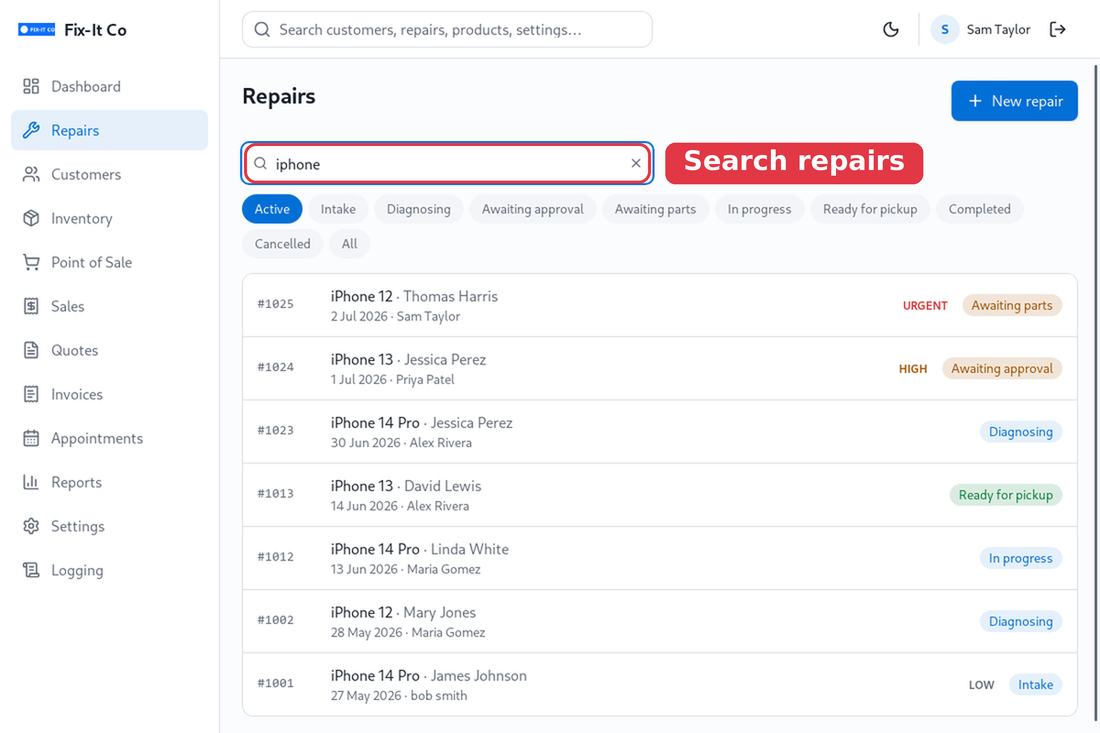
Open Repairs from the sidebar. Use the status tabs to filter the list, or the search box to find a job by ticket number, customer, item or reported fault. Click on New repair to begin a new one.
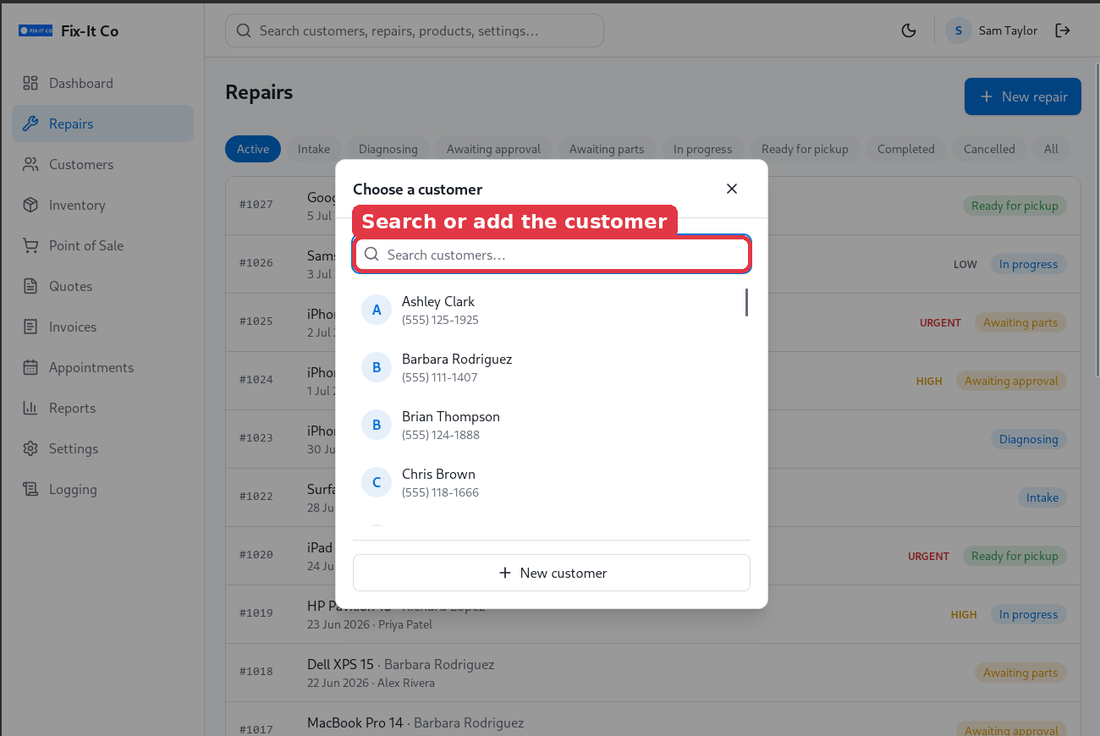
Choose an existing customer, or add a new one on the spot with New customer.
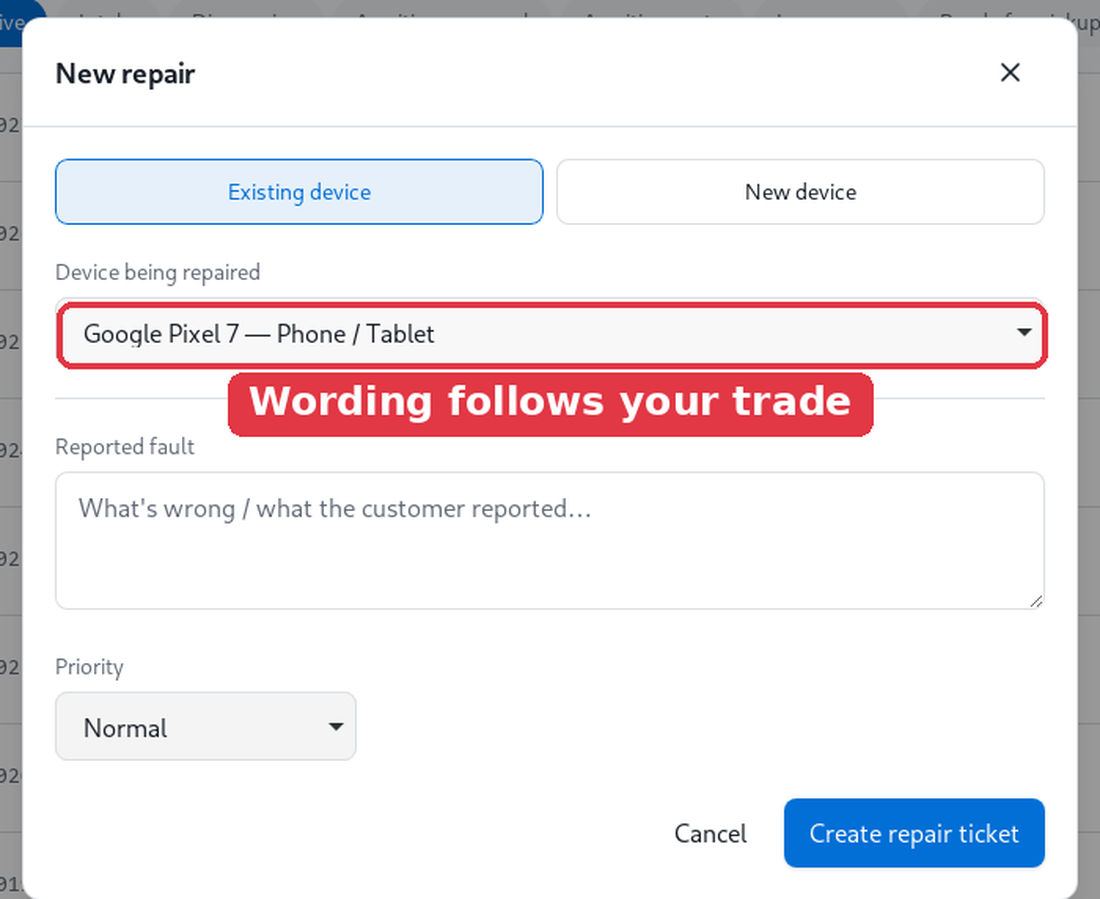
For a device you’ve worked on before, keep Existing device selected and pick it from the Device being repaired list. Then fill in the shared details: the Reported fault (a free-form note of what’s wrong - optional, but usually worth filling in) and a Priority of Low, Normal, High or Urgent (Normal by default). Click on Create repair ticket. The item wording matches your trade. Marking a repair Urgent can also add an expedited fee to its bill.
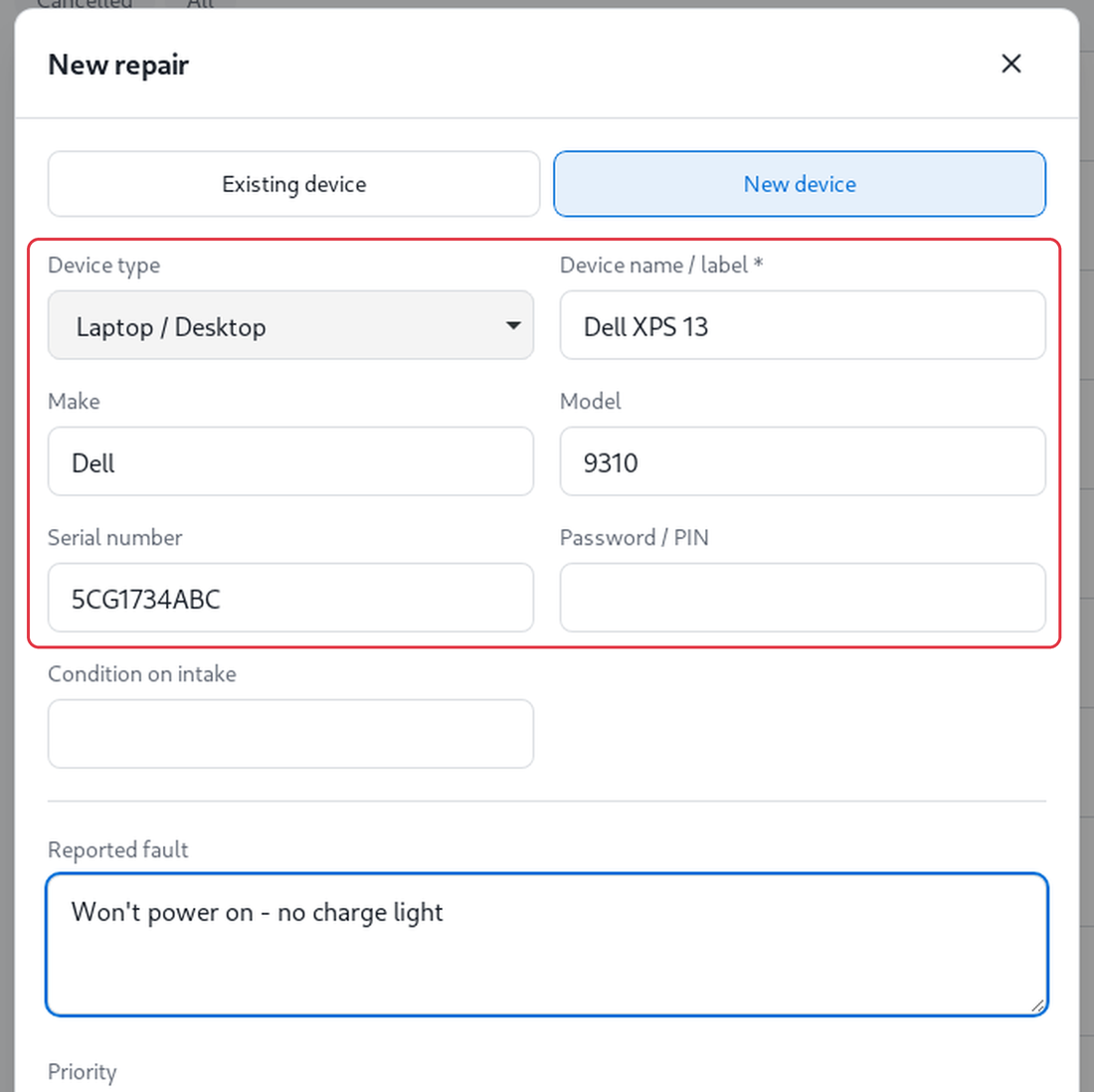
Repairing something new? Switch to New device and record its Device type and a name / label (the only required field here, e.g. “Dell XPS 13”). The type then offers its own detail fields - for a device that’s Make, Model, Serial number, a Password / PIN if you’ll need it, and the Condition on intake - and you can tailor these fields per type in Settings. It’s saved against the customer for next time, so you won’t re-enter it on the next repair.
Work the repair
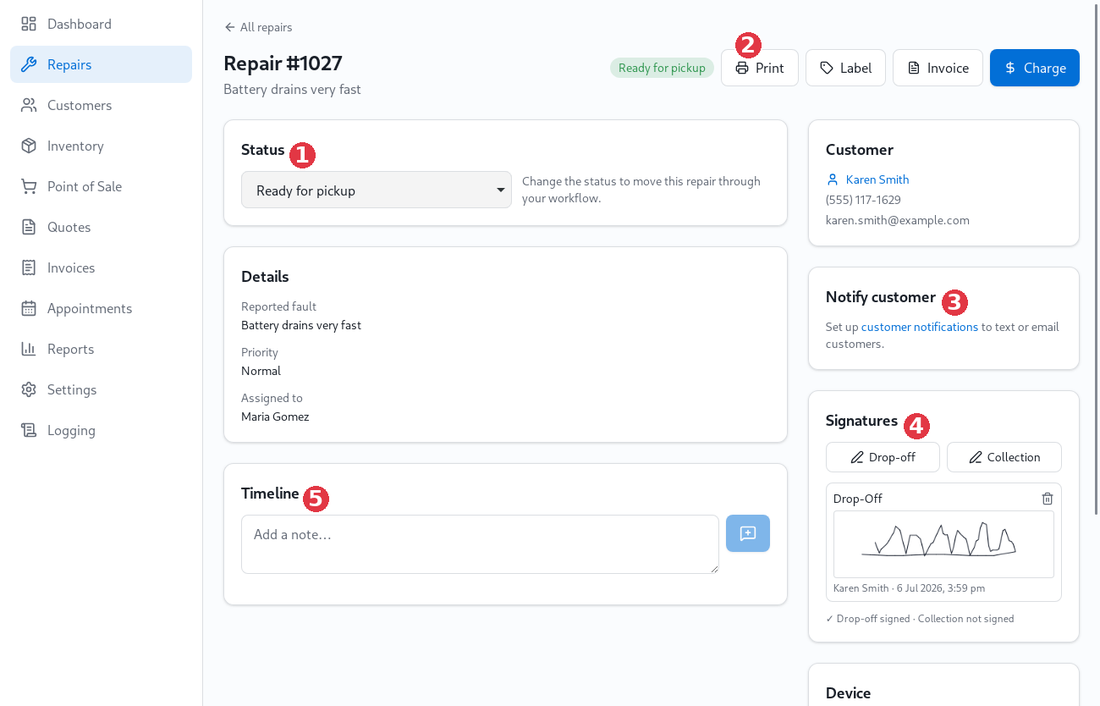
The repair page is your hub for the job. From here you can: 1 move it through your workflow with the status dropdown, 2 print a ticket, print a label, raise an invoice or take payment, 3 text or email the customer, 4 capture drop-off & collection signatures, and 5 log notes on the timeline.
Capture a signature
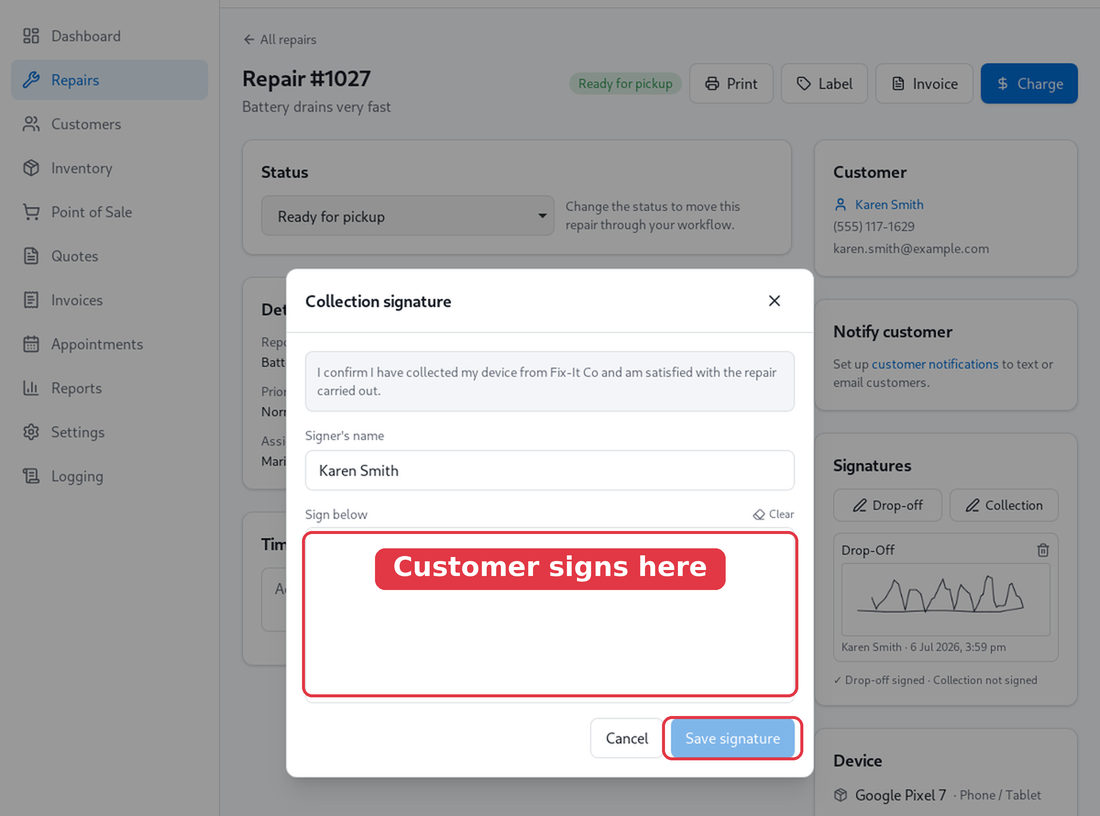
Click on Drop-off or Collection in the Signatures panel. The customer signs on-screen with a mouse or trackpad - or, on a touchscreen or signature pad, their finger or a stylus - so no special hardware is needed. Their name and the agreed terms are recorded, and the signature prints on the ticket. You can edit the wording customers agree to under Settings → Signature terms.
Print a ticket
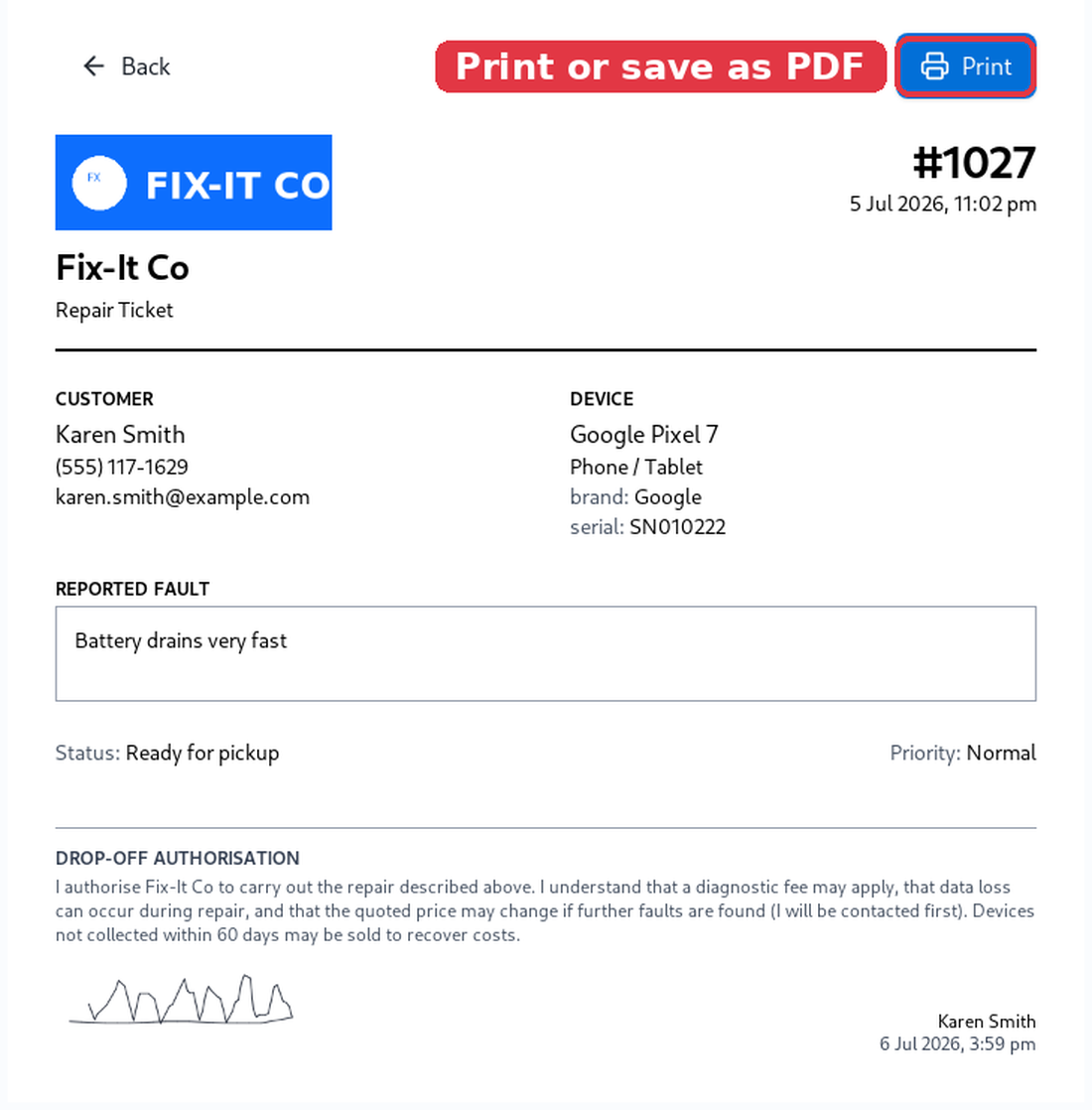
Click on Print on the repair to open a clean, printable ticket - your logo, the customer and item details, the fault, and the signature. Use the Print button to send it to a printer or save it as a PDF.