Inventory
Manage what you sell, keep stock levels honest, and reorder before you run out.
Products & stock
Open Inventory to manage what you sell. Use Low stock only to see what needs reordering, and manage Purchase orders and Suppliers from the buttons at the top.
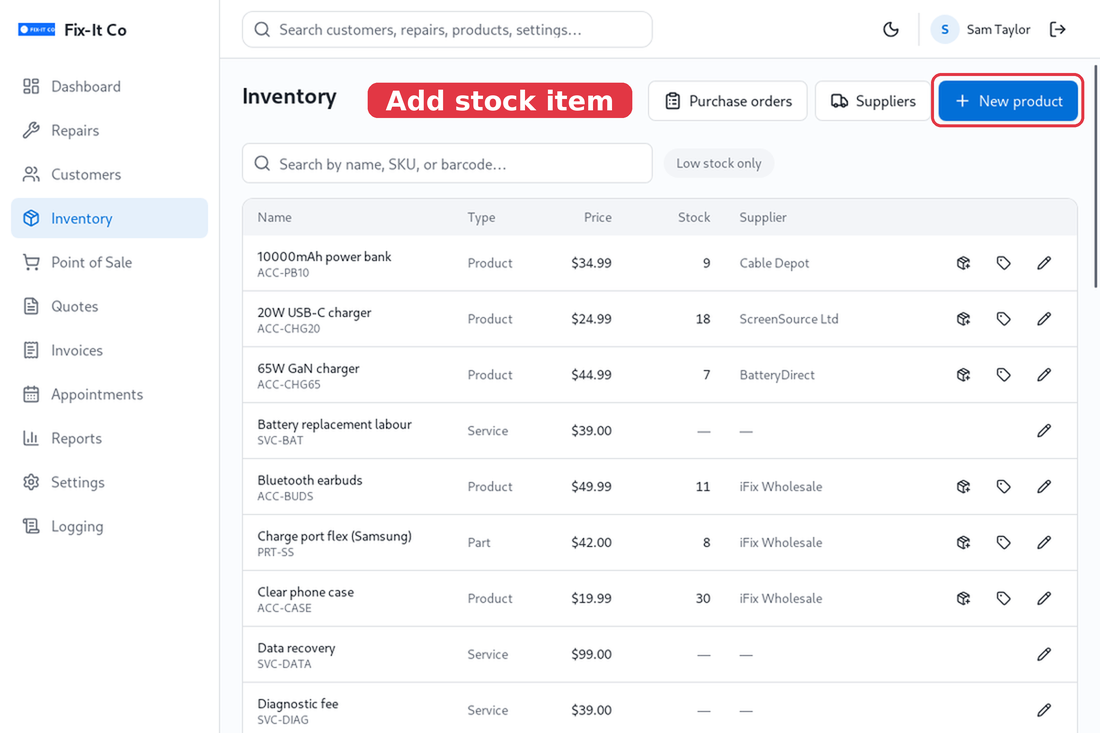
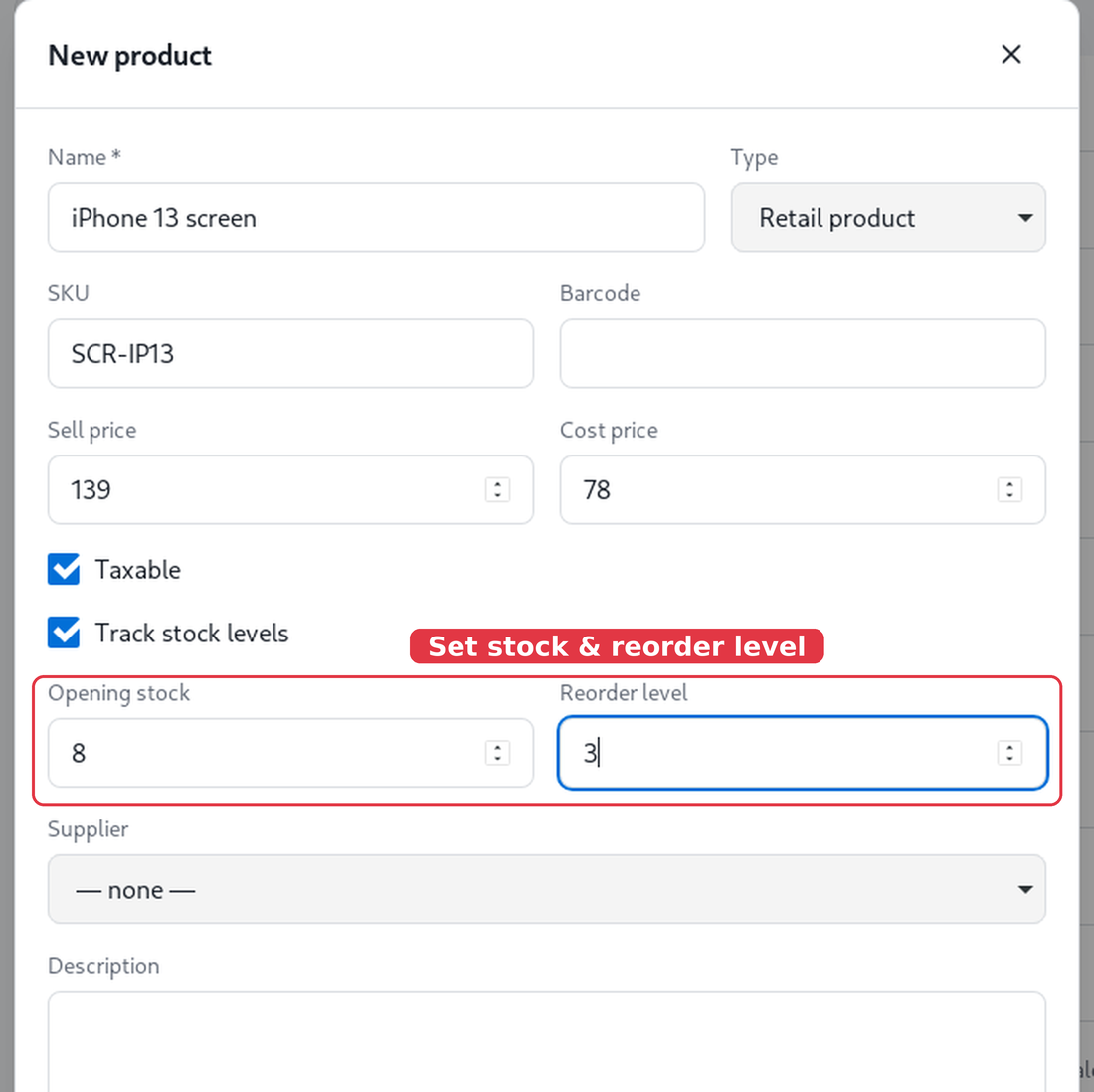
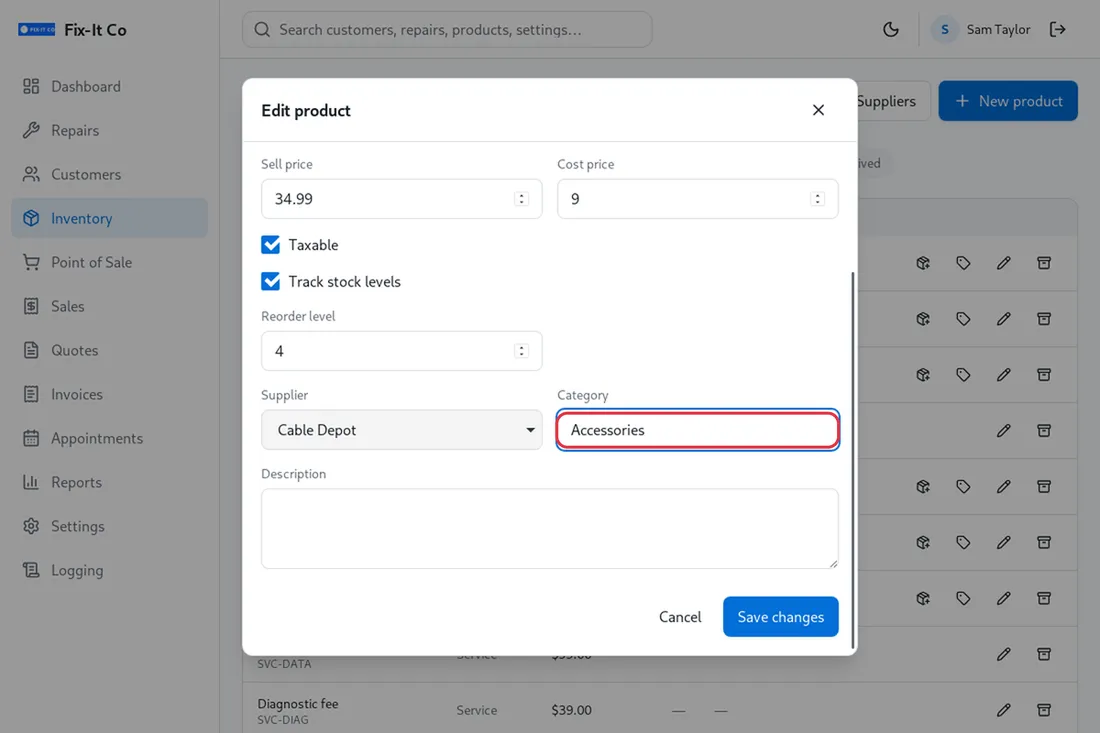
Click on New product to add a part, accessory or service. Give it a Name, a Sell price and Cost price, and a SKU or barcode if you use them. Tick Track stock levels to set an Opening stock and a Reorder level - the dashboard then flags it when stock runs low. SKUs and barcodes must be unique, so scanning always finds the right product.
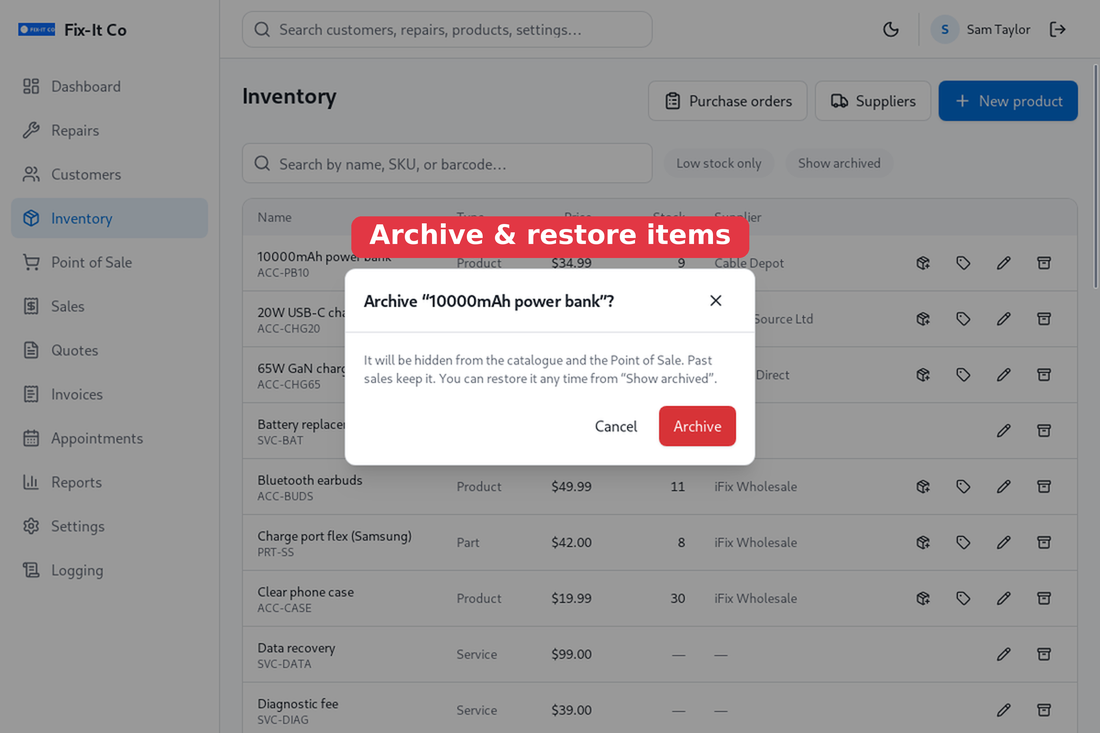
Stopped selling something? Use the archive action on the product to hide it from the catalogue and Point of Sale without losing its history - past sales keep it. Turn on Show archived to see archived products again and restore any of them.
Grouping products. Give a product a Category on its form - for example Screens, Batteries or Accessories. Start typing to reuse a category you’ve entered before. Once any product has a category, an All categories filter appears above the list so you can narrow the catalogue to one group at a time.
Suppliers & purchase orders
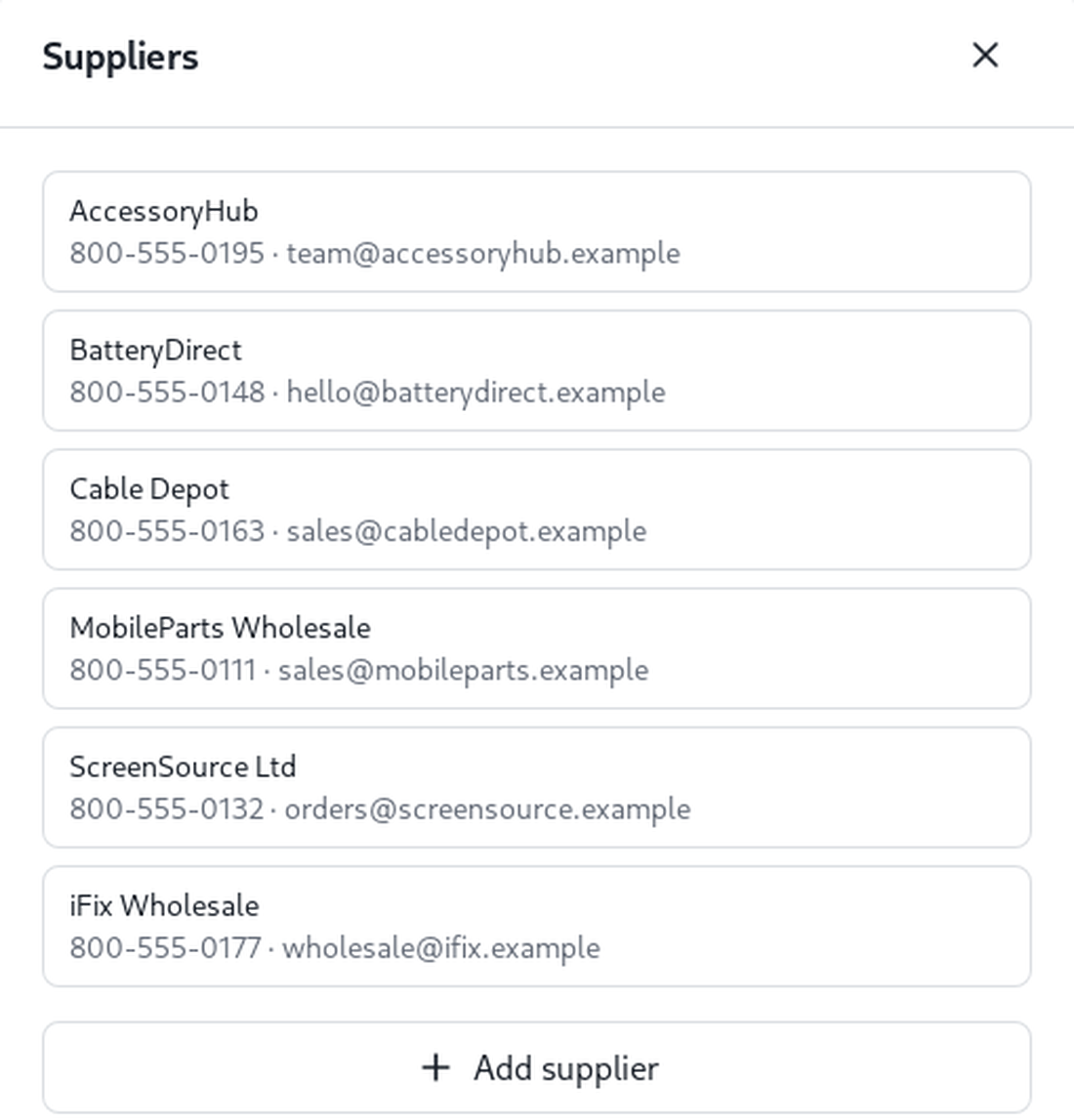
Click on Suppliers to keep a list of who you buy from, with their phone and email. Add each supplier once with Add supplier, then attach them to products and raise Purchase orders when it’s time to restock.
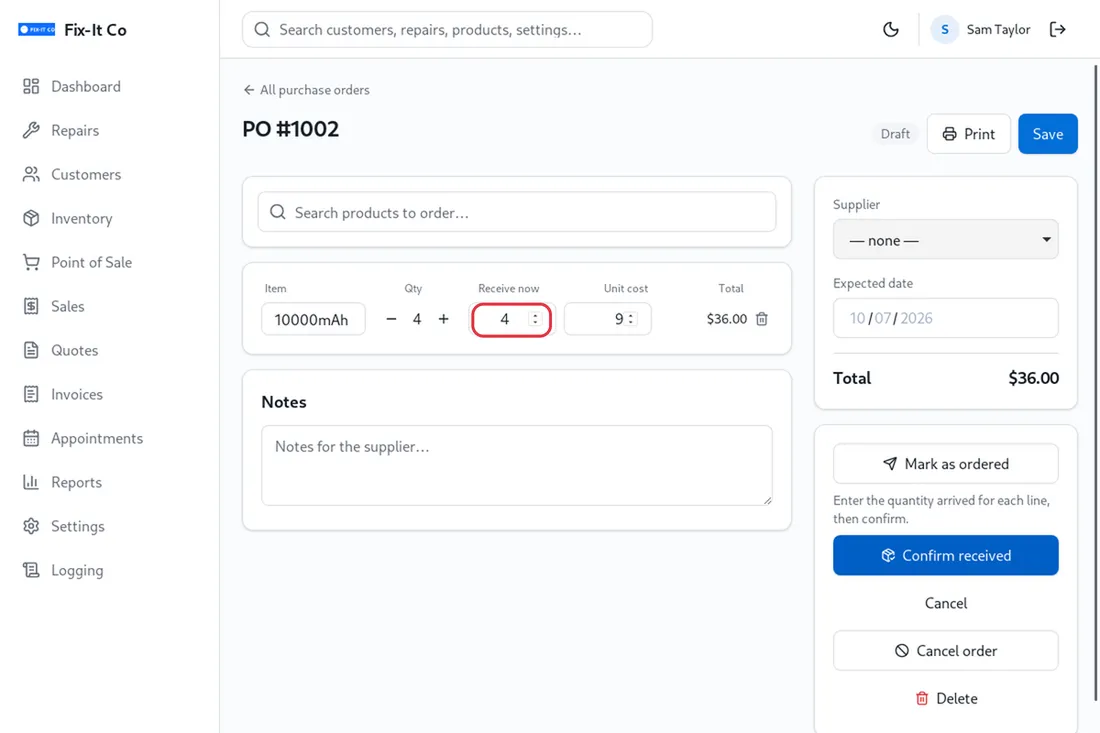
On a purchase order, click on Mark as ordered once you’ve placed it, and Receive all remaining when it arrives - the ordered quantities are added to your stock levels. If an order falls through before it arrives, click on Cancel order to close it off; a received order can’t be cancelled, because its stock is already booked in.
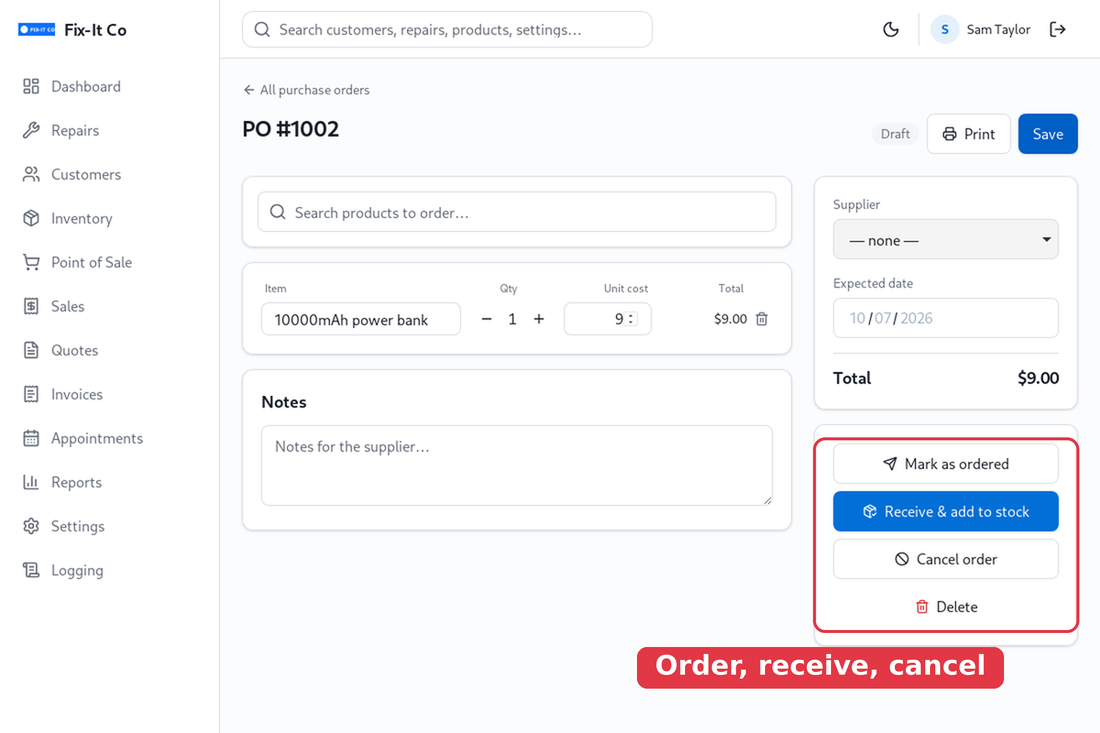
Part of an order arrived? Click on Receive some… and enter how many of each line turned up, then Confirm received. Only those quantities are added to stock, the order stays open showing a received / ordered count per line (for example 2/4), and you can receive the rest whenever it comes in. Receiving also updates the product’s cost price to what you actually paid on the order.